Showing posts with label Visualforce training.. Show all posts

Sunday, April 3, 2016

JQuery simple form example in Visualforce.

JQuery simple form example in Visualforce.


Example 1:

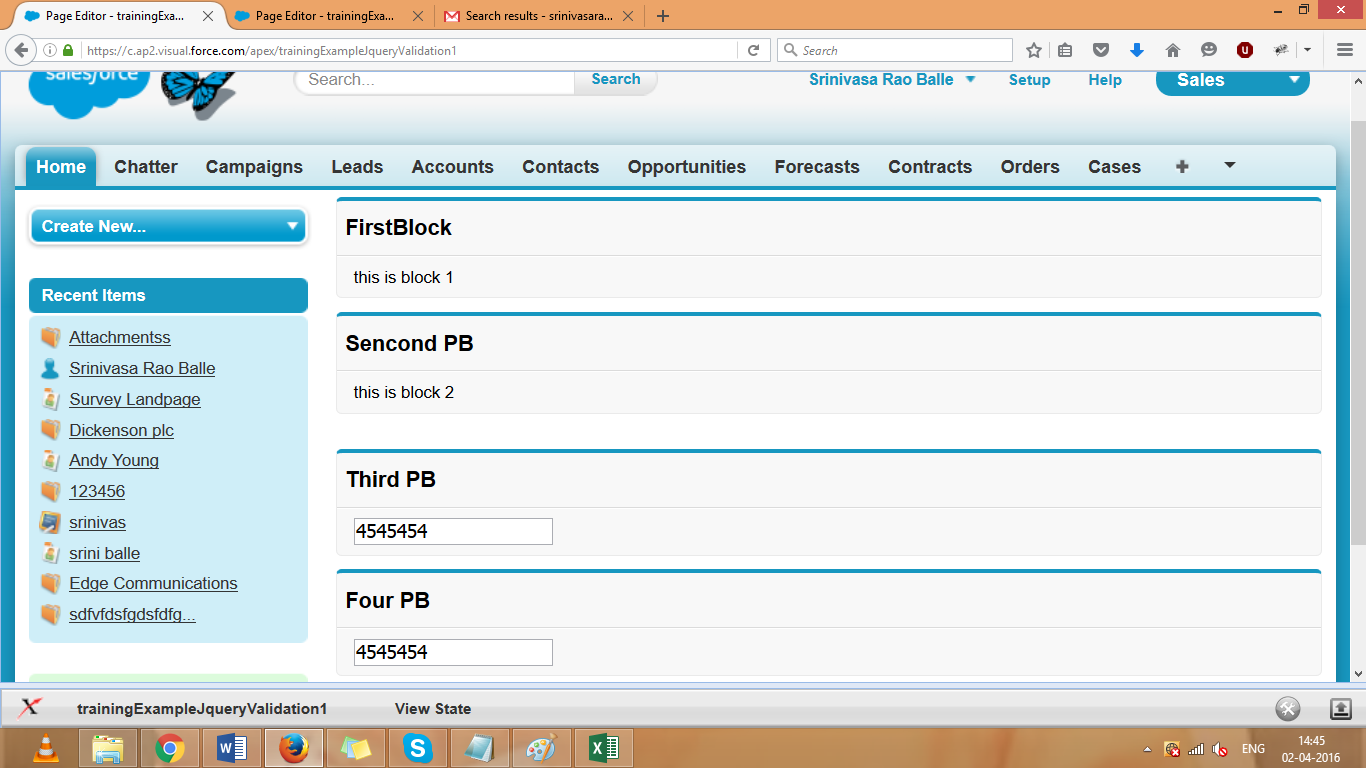
In this example i am showing mouse over and text box copy elements.

In the below examples i am referencing JQuery library from static resources. 

<apex:page >
<apex:form >

   <apex:includeScript value="{!$Resource.jquery_1_12}"/>
      
   <script>
    j$ = jQuery.noConflict();
    if(j$) {
     //  alert('Jquery loaded successfull....');
    }
    
    function show(){
   // alert('show is calling..'); 
     j$('[id$=pb2]').toggle();
    }
    
    function copyValues(){
    alert('copy value  is calling..'); 
     var itemValue = j$('[id$=name]').val();
     alert('item values is==>'+itemValue);    
       j$('[id$=pb4nputText]').val(itemValue);
     
    }
   </script>
   
   <apex:pageblock title="FirstBlock" id="pb1" onMouseOver="show()">
      this is block 1
   </apex:pageblock>
   
      <apex:pageblock title="Sencond PB" id="pb2"  >
      this is block 2
   </apex:pageblock>
    <br/>
    
     <apex:pageblock title="Third PB" id="pb3">
        <apex:inputtext id="name" onchange="copyValues()"/>
   </apex:pageblock>
   
      <apex:pageblock title="Four PB" id="pb4">
       
        <apex:inputText id="pb4nputText" />
   </apex:pageblock>
   
   </apex:form>
</apex:page>


Other JQuery examples :


Sunday, June 15, 2014

How To Use APEX:COMMANDBUTTON In Visualforce Page?

How To Use APEX:COMMANDBUTTON In Visualforce Page?

<apex:commandButton>:

 Buttons are very important in any page and they are the means using which a user interacts with the system to perform some actions such as Save, Update, Create, Delete, Cancel etc... 

This tag helps us to create buttons.The action that has to be executed when the button is pressed depends on the ACTION attribute specified in this tag. The action that is specified needs to be defined in the controller that is used in this pages controller attribute of the page tag. Once the action is performed the page would navigate to a different page or display the same page based on the PageReference variable that is returned by the action.

An < apex:commandButton > component must always be a child component of the < apex:form > tag. 

syntax:
<apex:commandButton action="{!save}" value="Save" id="save"/>

This tag supports following attributes:

Attribute
Description
Id
An identifier that allows the commandButton component to be referenced by other components in the page.
Image
The absolute or relative URL of the image displayed as this button. If specified, the type of the generated HTML input element is set to "image."
Immediate
A Boolean value that specifies whether the action associated with this component should happen immediately, without processing any validation rules associated with the fields on the page. If set to true, the action happens immediately and validation rules are skipped. If not specified, this value defaults to false.
onblur
The JavaScript invoked if the onblur event occurs that is, if the focus moves off of the command button.
onclick
The JavaScript invoked if the onclick event occurs that is, if the user clicks the command button.
oncomplete
The JavaScript invoked when the result of an AJAX update request completes on the client.
ondblclick
The JavaScript invoked if the ondblclick event occurs that is, if the user clicks the command button twice.
onfocus
The JavaScript invoked if the onfocus event occurs that is, if the focus is on the command button.
onkeydown
The JavaScript invoked if the onkeydown event occurs that is, if the user presses a keyboard key.
onkeypress
The JavaScript invoked if the onkeypress event occurs that is, if the user presses or holds down a keyboard key.
onkeyup
The JavaScript invoked if the onkeyup event occurs that is, if the user releases a keyboard key.
onmousedown
The JavaScript invoked if the onmousedown event occurs that is, if the user clicks a mouse button.
onmousemove
The JavaScript invoked if the onmousemove event occurs that is, if the user moves the mouse pointer.
onmouseout
The JavaScript invoked if the onmouseout event occurs that is, if the user moves the mouse pointer away from the command button.
onmouseover
The JavaScript invoked if the onmouseover event occurs that is, if the user moves the mouse pointer over the command button.
onmouseup
The JavaScript invoked if the onmouseup event occurs that is, if the user releases the mouse button.
rendered
A Boolean value that specifies whether the component is rendered on the page. If not specified, this value defaults to true.
reRender
The ID of one or more components that are redrawn when the result of an AJAX update request returns to the client. This value can be a single ID, a comma-separated list of IDs, or a merge field expression for a list or collection of IDs.
status
The ID of an associated component that displays the status of an AJAX update request. See the actionStatus component.
style
The style used to display the commandButton component, used primarily for adding inline CSS styles.
styleClass
The style class used to display the commandButton component, used primarily to designate which CSS styles are applied when using an external CSS stylesheet.
tabindex
The order in which this button is selected compared to other page components when a user presses the Tab key repeatedly. This value must be a number between 0 and 32767, with component 0 being the first component that is selected when a user presses the Tab key.
timeout
The amount of time (in milliseconds) before an AJAX update request should time out.
title
The text to display as a tooltip when the user's mouse pointer hovers over this component.
value
The text displayed on the commandButton as its label.


Visualforce Example:

<apex:page standardController="Account">
    <apex:form >
        <apex:pageBlock title="My Content" mode="edit">
            <apex:pageBlockSection title="My Content Section" columns="2">
                <apex:inputField value="{!account.name}"/>
                <apex:inputField value="{!account.site}"/>
                <apex:inputField value="{!account.type}"/>
                <apex:inputField value="{!account.accountNumber}"/>
            </apex:pageBlockSection>
            <apex:pageBlockButtons >
                <apex:commandButton action="{!save}" value="Save"/>
            </apex:pageBlockButtons>
        </apex:pageBlock>
    </apex:form>
</apex:page>


This tag supports following attributes:

How To Use APEX:FORM In Visualforce Page?

How To Use APEX:FORM In Visualforce Page?


<apex:form>:-

It helps to create the page as a form. This tag need to be included in the page to accept input from the users. It's a best practice to have only one < apex:form > tag in a page instead of including it many times

This tag supports following attributes:
Attribute
Description
accept
The text to display as a tooltip when the user's mouse pointer hovers over this component.
acceptcharset
A comma-separated list of character encodings that a server processing this form can handle. If not specified, this value defaults to "UNKNOWN".
dir
The direction in which the generated HTML component should be read. Possible values include "RTL" (right to left) or "LTR" (left to right).
enctype
The content type used to submit the form to the server. If not specified, this value defaults to "application/x-www-form-urlencoded".
forceSSL
The form will be submitted using SSL, regardless of whether the page itself was served with SSL. The default is false. If the value is false, the form will be submitted using the same protocol as the page. If forceSSL is set to true, when the form is submitted, the page returned will use SSL.
id
An identifier that allows the form component to be referenced by other components in the page.
onclick
The JavaScript invoked if the onclick event occurs that is, if the user clicks the form.
ondblclick
The JavaScript invoked if the ondblclick event occurs that is, if the user clicks the form twice.
onkeydown
The JavaScript invoked if the onkeydown event occurs that is, if the user presses a keyboard key.
onkeypress
The JavaScript invoked if the onkeypress event occurs that is, if the user presses or holds down a keyboard key.
onkeyup
The JavaScript invoked if the onkeyup event occurs that is, if the user releases a keyboard key.
onmousedown
The JavaScript invoked if the onmousedown event occurs that is, if the user clicks a mouse button.
onmousemove
The JavaScript invoked if the onmousemove event occurs that is, if the user moves the mouse pointer.
onmouseout
The JavaScript invoked if the onmouseout event occurs that is, if the user moves the mouse pointer away from the form.
onmouseover
The JavaScript invoked if the onmouseover event occurs that is, if the user moves the mouse pointer over the form.
onmouseup
The JavaScript invoked if the onmouseup event occurs that is, if the user releases the mouse button.
onreset
The JavaScript invoked if the onreset event occurs that is, if the user clicks the reset button on the form.
onsubmit
The JavaScript invoked if the onsubmit event occurs that is, if the user clicks the submit button on the form.
prependId
A Boolean value that specifies whether or not this form should prepend its ID to the IDs of its child components during the clientid generation process. If not specified, the value defaults to true.
rendered
A Boolean value that specifies whether the component is rendered on the page. If not specified, this value defaults to true.
style
The style used to display the form component, used primarily for adding inline CSS styles.
styleClass
The style class used to display the form component, used primarily to designate which CSS styles are applied when using an external CSS stylesheet.
target
The name of the frame that displays the response after the form is submitted. Possible values for this attribute include "_blank", "_parent", "_self", and "_top". You can also specify your own target names by assigning a value to the name attribute of a desired destination.
title
The text to display as a tooltip when the user's mouse pointer hovers over this component.


Visualforce Example :-

<apex:page standardController="Account">
    <apex:form id="changeStatusForm">
        <apex:pageBlock >
          <apex:pageblocksection title="Account Information">
               <apex:inputfield value="{!account.name}"/>
               <apex:inputfield value="{!account.accountnumber}"/>
               <apex:inputfield value="{!account.rating}"/>
               <apex:inputfield value="{!account.industry}"/>
        </apex:pageblocksection>
        <apex:pageblocksection title="Category Information">
             <apex:inputfield value="{!account.type}"/>
             <apex:inputfield value="{!account.AnnualRevenue}"/>
        </apex:pageblocksection>
        <apex:pageBlockButtons >
             <apex:commandButton value="Save" action="{!save}"/>
        </apex:pageBlockButtons>
       </apex:pageBlock>
    </apex:form>
</apex:page>


save image


| ,